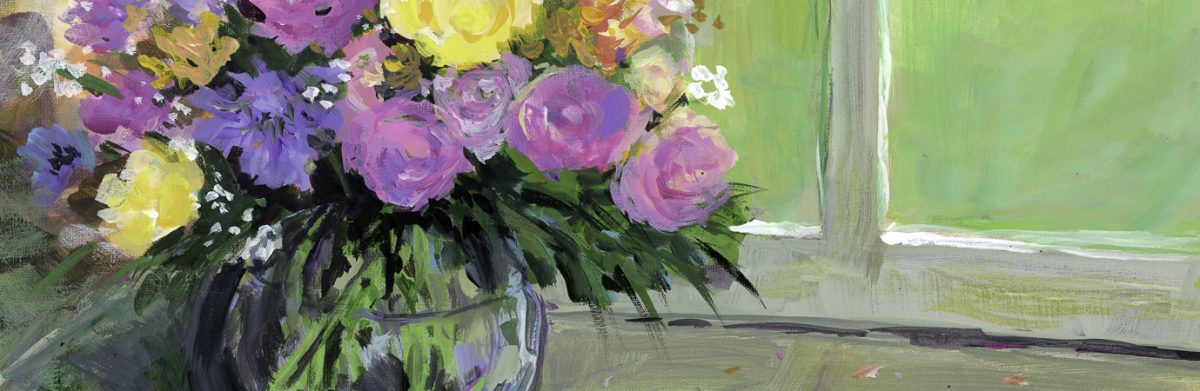

Panoramas are a really fun thing to do in photography, and there are a lot of ways to do them, and why or when to do them.
For me, the panorama is best for landscape, just because I do not tend to do portraits. Bokeh panoramas are the brain child of Ryan Brenizer – he uses them specifically with his wedding photography. (If you go to his website, scroll to the very, very bottom – there are some links for his methodology.) Panos can have great DOF, or shallow – Brenizer specializes in shallow to isolate his couples in a landscape or cityscape. Be aware, that a shallow DOF can work in a landscape, too, to isolate your subject.
Only one rule, in my opinion: set your camera to manual, focus on your subject, set your technique (iso, f/stop, time), and then shoot. And shoot. And shoot.
Overlap those pictures! Use the guidelines in the viewfinder to help you. Go back and take some extras if you think you missed an area – but even then, you might. Oh, well.
Below is a mosaic of all the images I took for the final panorama shot seen at the end of this rather long post – there were about 45 in all; here I reduced them to 1000 pixels for easy viewing from 16 meg images. If you click on an image, it will pop into a slide show for you.


For landscapes, you can handhold your camera. Bokeh panoramas can also be handheld. There may be some distortion when you look up and click, or look down; the end result can be interesting or awful, but it can be cleaned up in post. For longer exposures, though, the tripod is best.
HDR panoramas can be done a few ways. Set up your camera to do the +, 0, – images and take them that way, or do three different panos at different exposures, and blend the final ones in your software. You can also create different exposure levels in LR, such as +1, 0, -1 and then merge them. I’ve been happy with the results all 3 ways, but find that the ones which require the least work (the last two) are less frustrating. If you have to sort out a lot of bracketed photos to create the initial panos, it can get a little crazy-making. The point here is find what works for you.
For a bokeh panorama, put your area of interest into focus. For Brenizer, the couple is in focus. Use your largest f/stop, such a f1.8 or f1.4. My suggestion is to take the couple first, or the main area of interest. From there, keeping the same exposure, click away, developing some kind of grid pattern – like right to left, up and down. Get more into the photos than you think you need because . . .
. . . because when you do a panorama, you can crop it into a lot of different pictures! I like doing this to look at compositional elements, such as lines and color.
That said, here is what I do when I shoot:
- Find the place I want to shoot.
- Determine exposure factors. Set everything up in manual mode.
- Make sure that if handheld, I can avoid blur. This means at least the reciprocal of your focal length (on a full frame 50mm, use at least 1/60; for a crop sensor, multiple your lens length by the crop factor, such as 1.5 crop would need about 1/80).
- Shoot my main areas first.
- Shoot around my main areas.
But, if you are out on a photo shoot and have a lot of pictures that are not a pano, you need to separate things. I take a picture of my hand in between the panos – totally out of focus but it shows me a beginning and an end point. Here is an example of my blurred-out hand.

So, back to the laboratory to process those pictures. This is my process, using LR and Photoshop.
- Separate each photo series into a subdirectory of wherever I have put my photos on my computer. I sometimes end up with “Pano 1,” “Pano 2,” etc. If I have shot bracketed images, the subdirs become “Pano 1a,” “Pano 1b,” and so on.
- If I have only a few pictures for a pano, I don’t reduce them in size. However, 90 images of 16 megs can become an issue. I usually reboot my computer when I begin processing, to clear its memory. I like 2000 – 3000 pixels per image.
- Using LR, I collect all the images I want in each subdir, using the Library. From there I export them into a subdir of the subdir, naming the new subdir “2000” to show the size to which I have changed the image. I use the rename function to include “x of y” to know how many images I am using in the pano.
- Once done with this, in the Develop module in LR, I highlight all the resized images, right click on Edit, and Edit in Photoshop as a Panorama. I take the default settings and wait. If you haven’t done this before, find a video to follow, or just take each step at a time. Let Photoshop work its magic – be patient – it can take some time depending on both your images sizes, number of images, and your computer’s setup.
- When done, save, and name your new pano – it will also return it to LR for you. If you cannot find it, use your Import when in the Library.
- Make your adjustments and edits in LR, Photoshop, or whatever. Merge them for HDRs if you want.
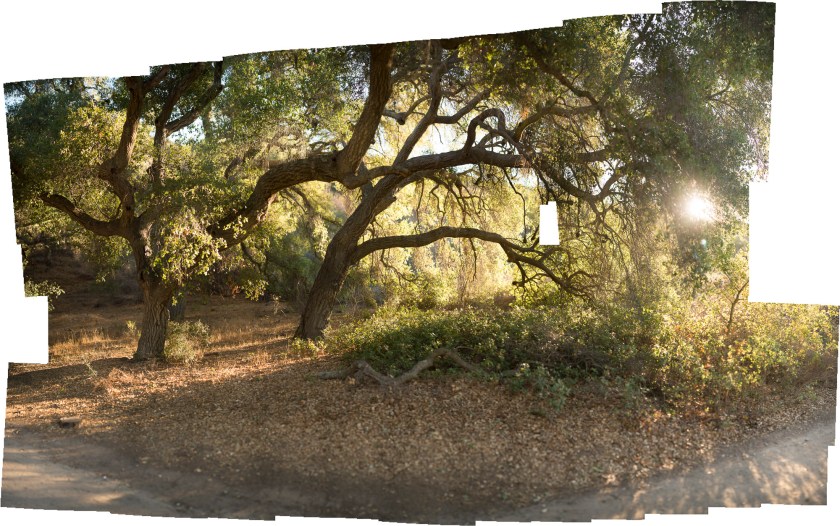
You see a gap in the above pano – the Fill in PS did not do a good job – so, I ended up cropping around it. This next pano was pretty nice – no gaps.

Cropping the above image produced some gaps – but those are easily filled in with PS or just cropped out.

Panoramas are really quite easy – all you have to do is play a bit. I am not a sophisticated post-processor, and certainly cannot do the magic a lot of people do in PS, but I can do a few things . . . like use the Lasso tool and Intelligent Fill to fix gaps . . . Below are my final edits, some subtle, some not too subtle, of my final image. To see each one individually, start the slideshow by clicking on an image.


Depending on what I want to do, I do my post processing in LR, PS, PPS9, Photomatix, and Nik. Every now and then, something else will stray in.
 Ink, Yarn & Beer