Once more, the folks at OnOne Software have come through with an excellent video tutorial. What makes their tutorials so nice is that you also get to learn a lot more about the program as their narrators are usually articulate with a spoken pace which is understandable and clear. Being able to put a video on pause is another advantage – you can fumble around with Perfect Photo Suite as you follow along, wait for things to process, answer the phone, or whatever. You will find their tutorials under the Learn / Video Tutorials tab on their site.
The video I watched today is Replicating Faded Film Looks.The essence is that one can achieve this look, and then batch process it so other images will take on the same characteristics as the original. The parts of Perfect Photo Suite used include the Browser, Enhance, Resize, Effects, and Batch.
I used a bunch of images from a photo shoot at a local beach done a couple of years ago. Here are the before-and-after images. If you have sharp eyes, you will see that none of the “original” pictures match the finished – I have about 1400 pictures in the folder from which these are drawn, so I pulled out ones which were similar. I really should have moved the before and after pictures to another folder . . . live and learn. But, you will get the idea!


After processing the images in Photo Suite, I did add a bit of a vignette in all images using the vignette tool in LR5.


What I like about this shot is that the crab, while really rich in color, did fade rather nicely in the final shot.
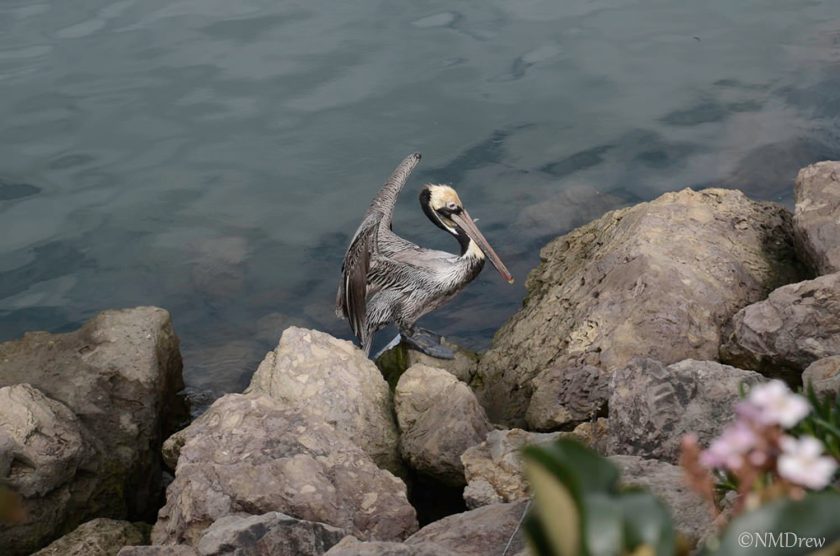
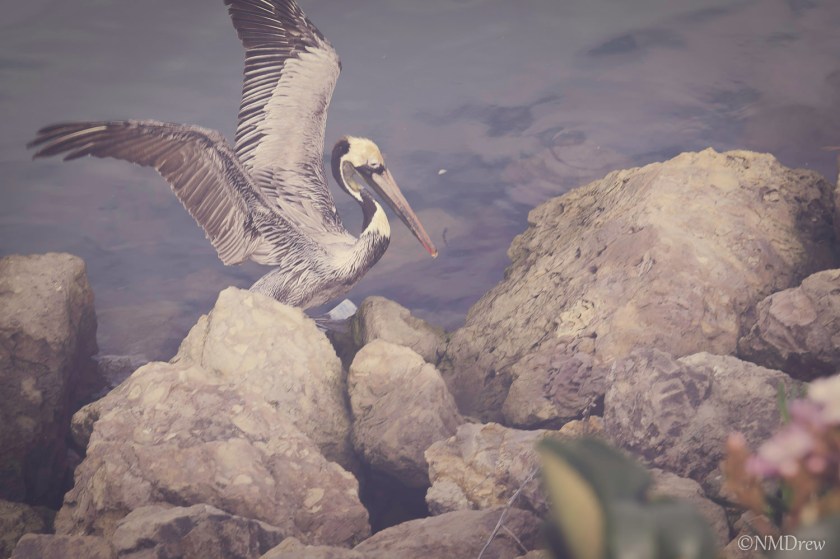
Altogether, this is really nice if you are trying to achieve a similar quality between pictures. The Batch process works nicely, and seems fairly efficient – I processed all 3 of the images in the same batch.
I’ve decided that I will work toward mastering Perfect Photo Suite, rather than some of the other programs I have to use. Photoshop is just way to complicated for my impatient nature, and OnOne is putting out V. 9 of Photo Suite by the end of this week, and I already bought my upgrade.


 Ink, Yarn & Beer