
This was taken a year ago, in March. It caught my eye last night, so putzing a bit in LR I used VSCO 02, Polaroid 690 warm. In PPS9 I replaced the sky and used various effects. This is the final result.
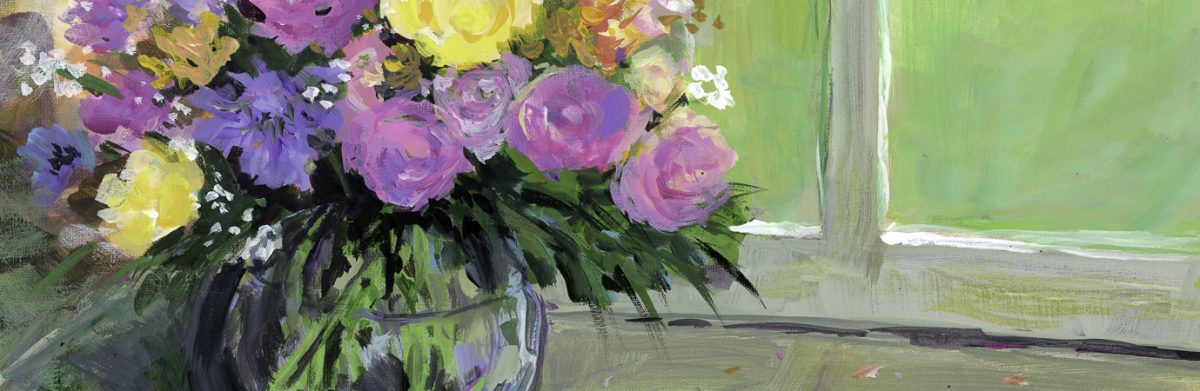
This was taken a year ago, in March. It caught my eye last night, so putzing a bit in LR I used VSCO 02, Polaroid 690 warm. In PPS9 I replaced the sky and used various effects. This is the final result.
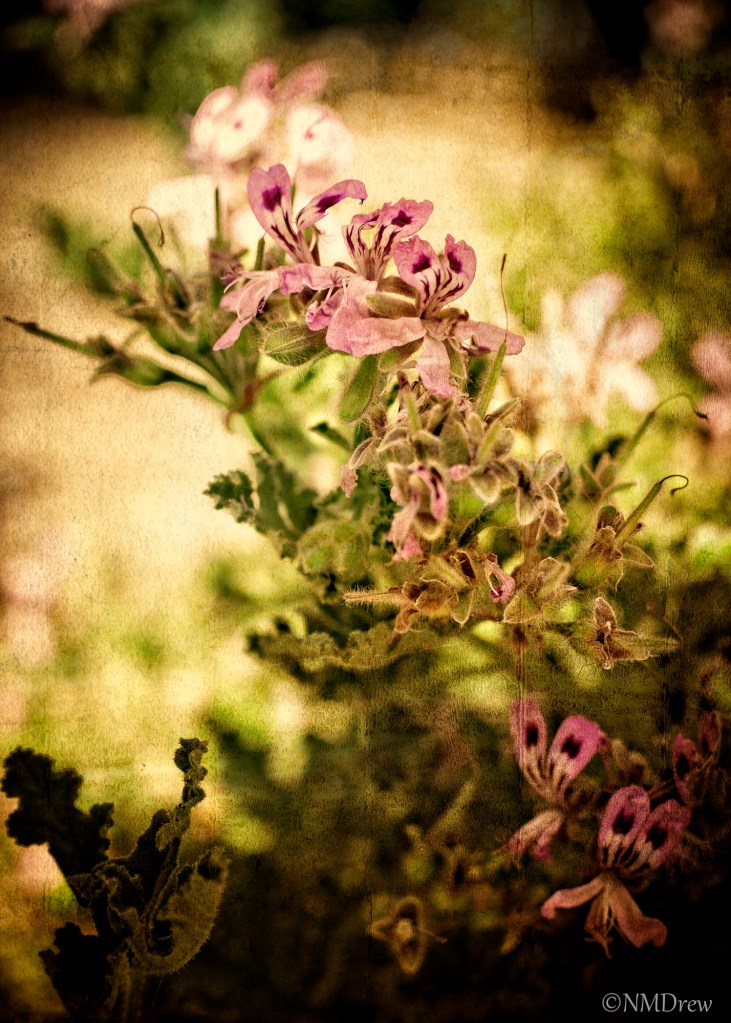
I have been playing around a lot with Perfect Photo Suite 9, taking past images and doing something different. Sometimes I like what I get, sometimes I don’t.
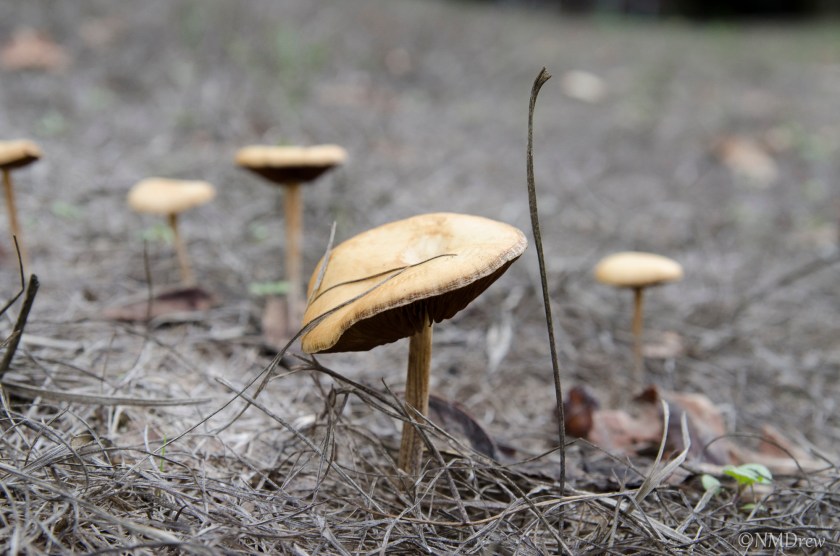
I am not really sure how to write a tutorial for a software program, but I think it is interesting to read about people’s processes in photography, whether it is in approaching a shot or processing it later on. Often, I find, when I look at pictures with a bit of distance from the time of the shoot, other perspectives emerge. These include composition, points of interest, how to process. Of course, tomorrow, the same picture could become very different!
Above is the original picture. I shot it using a Tamron 17-50mm on my Nikon D7000. This was taken in the fields surrounding the Paramount Ranch in Agoura, CA. The day was rather dull and overcast, the lighting was not spectacular, and it was in the middle of the day. Lots of things about that day made for very poor lighting conditions.
This next picture is my first crop of the picture. The biggest mushroom was the one I liked the best. The bit of grass to its right is an eyesore, and I guess now I would be more inclined to squash it out of the way or just uproot it. Still, software can work its magic to remove it. I tried it in LR and did not like the results, so used the eraser in the Layers portion of Perfect Photo Suite 9 (PPS9).

Moving along, once I had removed the grass in Layers, I also used Clone Stamp to copy some texture from other areas in the image to hide where the grass had been removed a bit more. From there, I moved to Effects. In Effects, like many of the video-makers I have watched on the OnOne tutorial site, the first Effect I choose is Dynamic Contrast, using the Natural formulation. A few adjustments here and then.
Next, I used Color Enhancer twice; the first was Darken Sky, and the second was Increase Color. Layer Opacity for each was adjusted to my liking.
Moving from Color Enhancer, I used Shadows Darker, Midtone Contrast Boost, and Lighter, adjusting each. From there, I went to Texturizer, using Earth (which seemed the best, and certainly appropriate given the conditions under which mushrooms flourish!). Finally, Vignette and Big Softy with a few adjustments.
To me, the most important element of the post-processing was the use of the texture. The picture itself was okay, but not interesting to my eyes.
And below, the final result . . .

This is from a trip to the zoo! I love flamingos, but you have to admit, they are pretty messy birds. They live in large flocks, on muddy ground, and filter for food in muddy water. Additionally, they moult, leaves fall into the water, and the whole place can become rather rank.
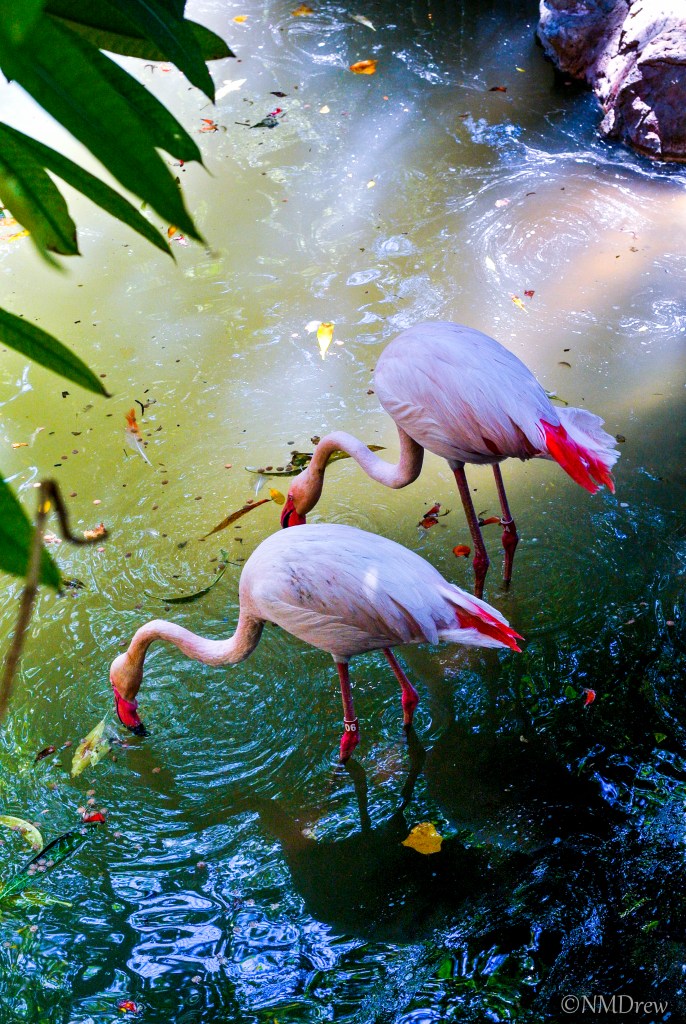
Taking a picture of flamingos can be a bit of a challenge, but here the challenge was the messy pond. Above, you will find the original picture. And below, you will see the pond all shiny and clean, and cropped a bit. Click on any one of the three pictures below to play the slide show.


I used OnOne Photo Suite 9 to clean up the pond, add a texture layer, and finally a sun flare to modify or hide a rather rough patch where the big leaves on the lower left side were removed. Some final finishing in LR 5.7.
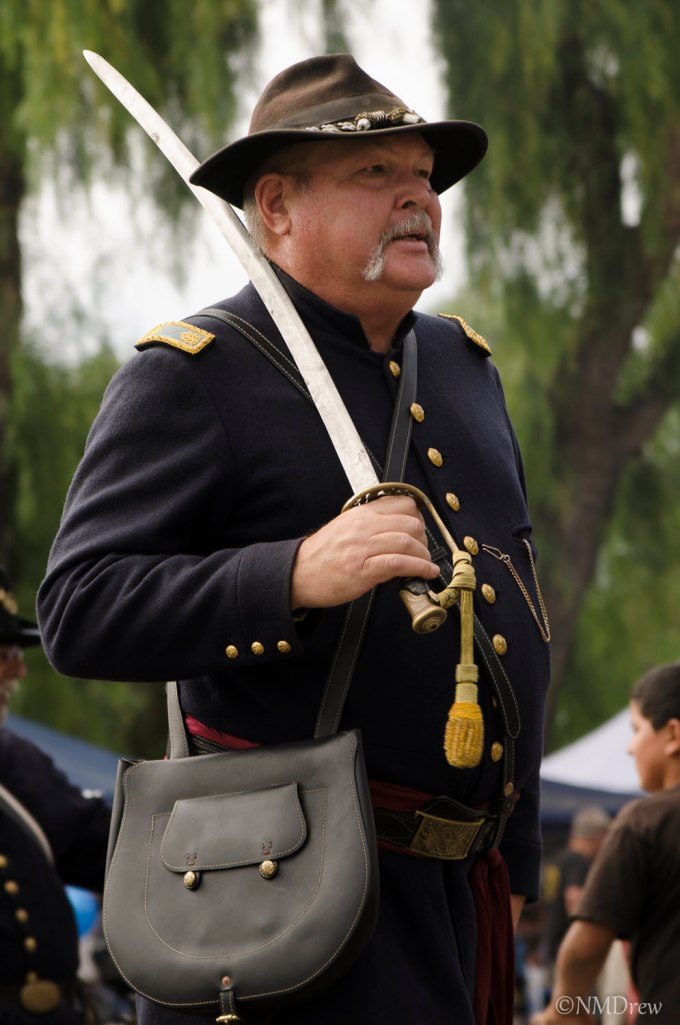
This is the original picture I took of a Civil War Re-enactment soldier. I decided to use this picture because it was complicated enough to require my working on it awhile. I also found a great background for him in some of the “extras” provided in Perfect Photo Suite 9.
I’ve tried remasking on a number of occasions, using different photos with different backgrounds, many with disastrous results. Here, I was reasonably happy, but there are still many flaws if you decide to pixel peep. I don’t really know the key to “great” masking – probably a combination of patience and a picture that is not too complicated along the edges. One thing I have learned is the importance of saving the image as you move along, not writing over the work, but naming it progressively in steps – like Soldier 1, Soldier 2, and so on. I made about 10 versions of this guy, working from large areas, saving more frequently when I came to small, fine areas. I also amputated part of a sleeve and a big chunk of his messenger bag at one point, so this really saved me. I also put a copy of the original under my other layers to reclaim really badly masked areas.
Here, you can see a cycle of my saves during the masking process – click on a picture to begin flipping through them.


One of the problems I had was the lighting. The soldier is backlit, and the scene itself has more even lighting, nothing really strong. To compensate, I darkened the right side of the picture with gradients and filters; some worked, some did not. I did other things, too. Below are my final results.


There was a lot of work involved here, and I am really glad I took the time to do it. Doing something is the best way to learn. Saving these masks in steps is also a good way to put things away when you are tired, as well as to save your tusche when things go wrong.
The Perfect Photo Suite is working out nicely for most of my stuff. Panoramas, too my knowledge, are not easily done in the software, so I use Photoshop for that.
Let me know what you think!
 Ink, Yarn & Beer