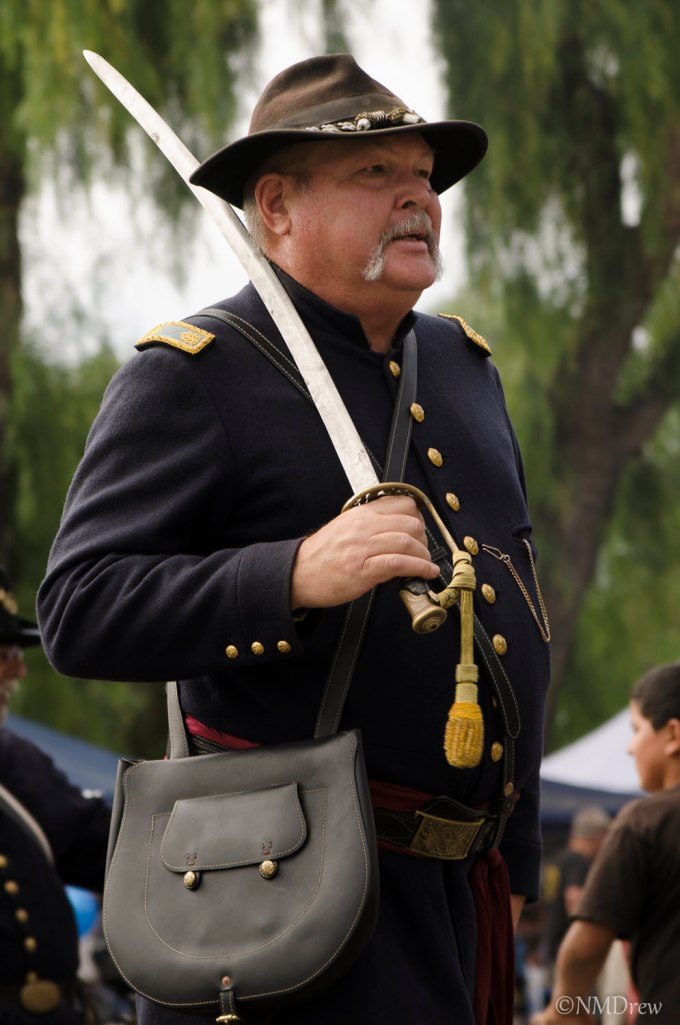
This is the original picture I took of a Civil War Re-enactment soldier. I decided to use this picture because it was complicated enough to require my working on it awhile. I also found a great background for him in some of the “extras” provided in Perfect Photo Suite 9.
I’ve tried remasking on a number of occasions, using different photos with different backgrounds, many with disastrous results. Here, I was reasonably happy, but there are still many flaws if you decide to pixel peep. I don’t really know the key to “great” masking – probably a combination of patience and a picture that is not too complicated along the edges. One thing I have learned is the importance of saving the image as you move along, not writing over the work, but naming it progressively in steps – like Soldier 1, Soldier 2, and so on. I made about 10 versions of this guy, working from large areas, saving more frequently when I came to small, fine areas. I also amputated part of a sleeve and a big chunk of his messenger bag at one point, so this really saved me. I also put a copy of the original under my other layers to reclaim really badly masked areas.
Here, you can see a cycle of my saves during the masking process – click on a picture to begin flipping through them.


One of the problems I had was the lighting. The soldier is backlit, and the scene itself has more even lighting, nothing really strong. To compensate, I darkened the right side of the picture with gradients and filters; some worked, some did not. I did other things, too. Below are my final results.


There was a lot of work involved here, and I am really glad I took the time to do it. Doing something is the best way to learn. Saving these masks in steps is also a good way to put things away when you are tired, as well as to save your tusche when things go wrong.
The Perfect Photo Suite is working out nicely for most of my stuff. Panoramas, too my knowledge, are not easily done in the software, so I use Photoshop for that.
Let me know what you think!


 Ink, Yarn & Beer